Excel Validação de Dados

Neste artigo, veremos algumas maneiras de como utilizar Validação de Dados no Excel.
1. Abas
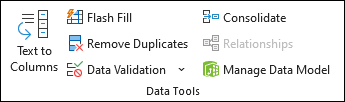
Para acessar a Validação de Dados, vá na guia Data e procure por Data Validation:
1.1 Settings
Na aba Settings, podemos definir o tipo de validação, que podem ser:
- Whole Number
- to restrict the cell to accept only whole numbers.
- Decimal
- to restrict the cell to accept only decimal numbers.
- List
- to pick data from the drop-down list.
- Date
- to restrict the cell to accept only date.
- Time
- to restrict the cell to accept only time.
- Text Length
- to restrict the length of the text.
- Custom
- for custom formula.

1.2 Input Message
Na aba Input Message, podemos definir uma mensagem quando a célula é selecionada. Sendo adequado para guiar o usuário sobre as restrições de valores da célula.


1.3 Error Alert
É possível alertar o usuário de quando um valor fora do especificado for entrado. Para isso, configure na aba Error Alert. Os tipos de mensagens podem ser atreladas à:
|
Icon |
Type |
Use to |
|
|
Stop |
Prevent users from entering invalid data in a cell. A Stop alert message has two options: Retry or Cancel. |
|
|
Warning |
Warn users that the data they entered is invalid, without preventing them from entering it. When a Warning alert message appears, users can click Yes to accept the invalid entry, No to edit the invalid entry, or Cancel to remove the invalid entry. |
|
|
Information |
Inform users that the data they entered is invalid, without preventing them from entering it. This type of error alert is the most flexible. When an Information alert message appears, users can click OK to accept the invalid value or Cancel to reject it. |


2. Referências
- Introduction to MS Excel da SimpliLearn.
- Apply data validation to cells do Suporte da Microsoft.
- More on data validation do Suporte da Microsoft.
Fique à vontade para deixar nos comentários opiniões ou sugestões de melhoria.


Comentários
Postar um comentário